

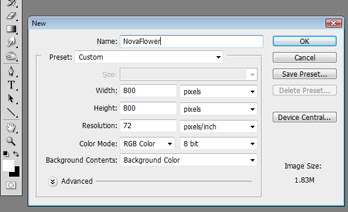
Firstly, create your canvas on Adobe Photoshop by pressing Ctrl + N. It can be whichever resolution you like but need to be big enough for the lens flare, I chose 800 x 800. I find it easier to work with a black background colour but you can experiment with different colours.
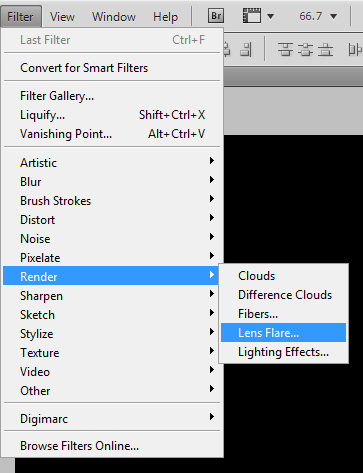
nova-flower-tutorial-02 Go to Filter > Render > Lens Flare…
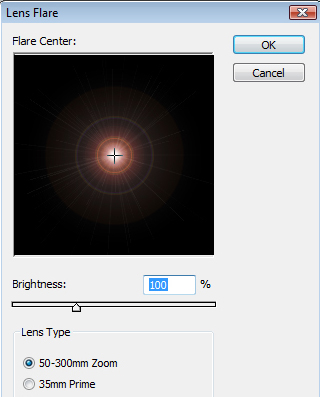
nova-flower-tutorial-03 This window will appear, I have kept the default settings but you can experiment. Don’t click OK yet!
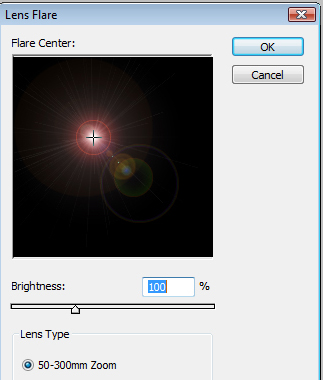
nova-flower-tutorial-04 Click and drag the grey cross into the center so that it appears as a glowing circle. Now you can click “OK”. You will now need a new background, press Ctrl + Shirt + N to make a new layout, click and drag this layout to the bottom of your layout order. Then use you Paint Bucket tool to apply a background (make sure the correct layer is selected).
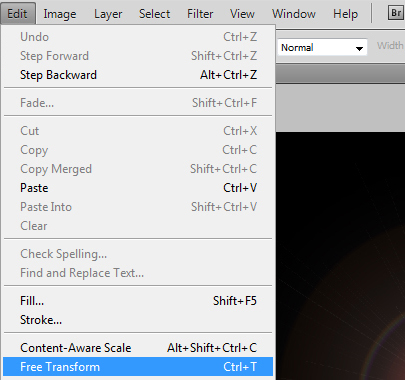
nova-flower-tutorial-05 Make sure you have selected the layer with your lens flare. Then go to Edit > Free Transform.
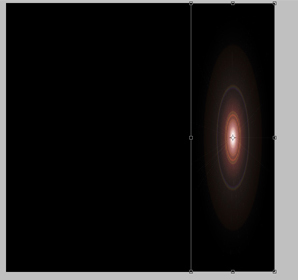
nova-flower-tutorial-06 Click and drag one side of your lens flare layer to make it thinner.
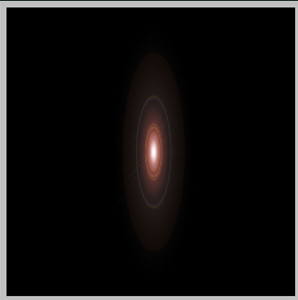
nova-flower-tutorial-07 Apply those changes and move the thin lens flare to the center of your canvas.
nova-flower-tutorial-08 Now duplicate this layer.
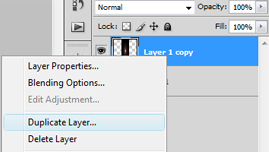
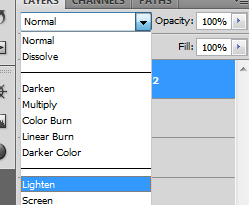
nova-flower-tutorial-09 Now apply the Lighten blend mode to the duplicated layer. Again, you can experiment with other blend modes.
nova-flower-tutorial-10 This time, we want to rotate the duplicated lenses. Go to Edit > Transform > Rotate and drag and click to get your desired petals.
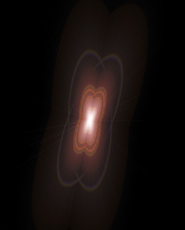
nova-flower-tutorial-11 Repeat the Duplicate > Lighten > Rotate steps until you make a flower. You can make as many and little petals you like depending on how many times you duplicate the layers.
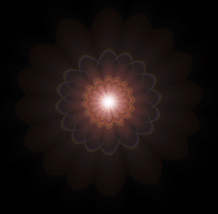
nova-flower-tutorial-12 Now for the fun part! You can choose any method to colour your petals but for this one, I pressed Ctrl + U for Hue and Saturation, ticked “Colorize” and played around with the colours of each layer. Good luck!
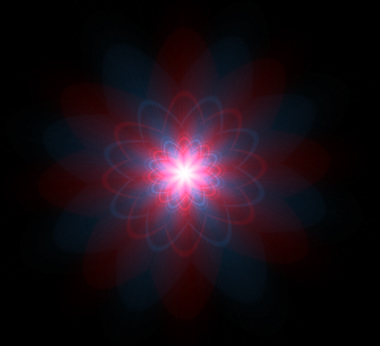
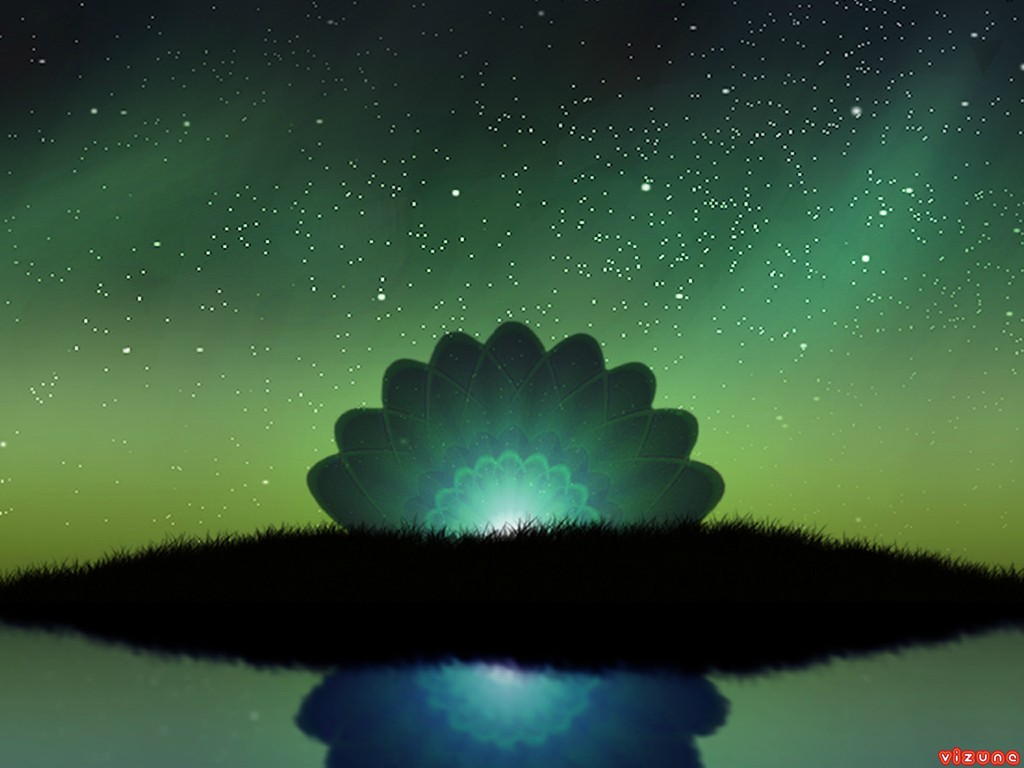
nova-flower-tutorial-13 Here's an example where I used this technique